
 1
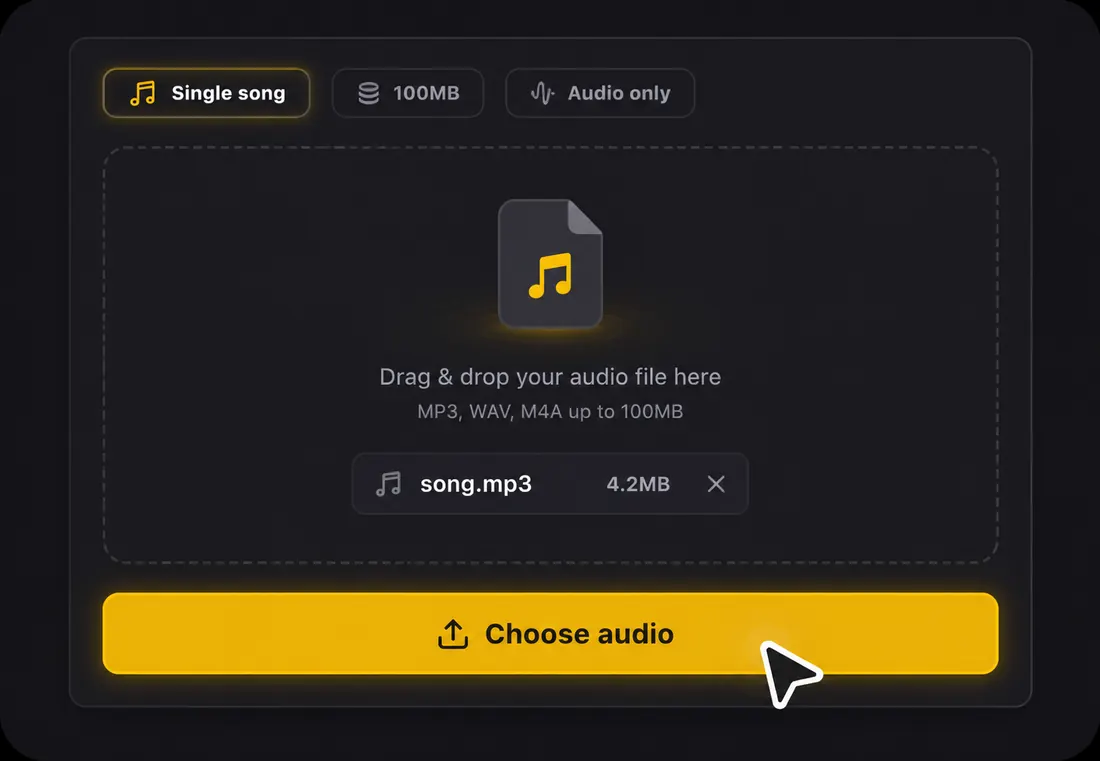
1Step 1: Upload your song audio
Start with an MP3, WAV, FLAC, AAC, OGG, or M4A audio file up to 100MB. Direct upload of finished footage for lyric overlay is planned, but the stable workflow today starts from audio.
Add lyrics to video online with AI sync
Upload your song audio. AI transcribes the lyrics, syncs every line to the beat, and creates a new lyric video. Directly overlaying lyrics on existing footage is planned.
1Start with an MP3, WAV, FLAC, AAC, OGG, or M4A audio file up to 100MB. Direct upload of finished footage for lyric overlay is planned, but the stable workflow today starts from audio.
 2
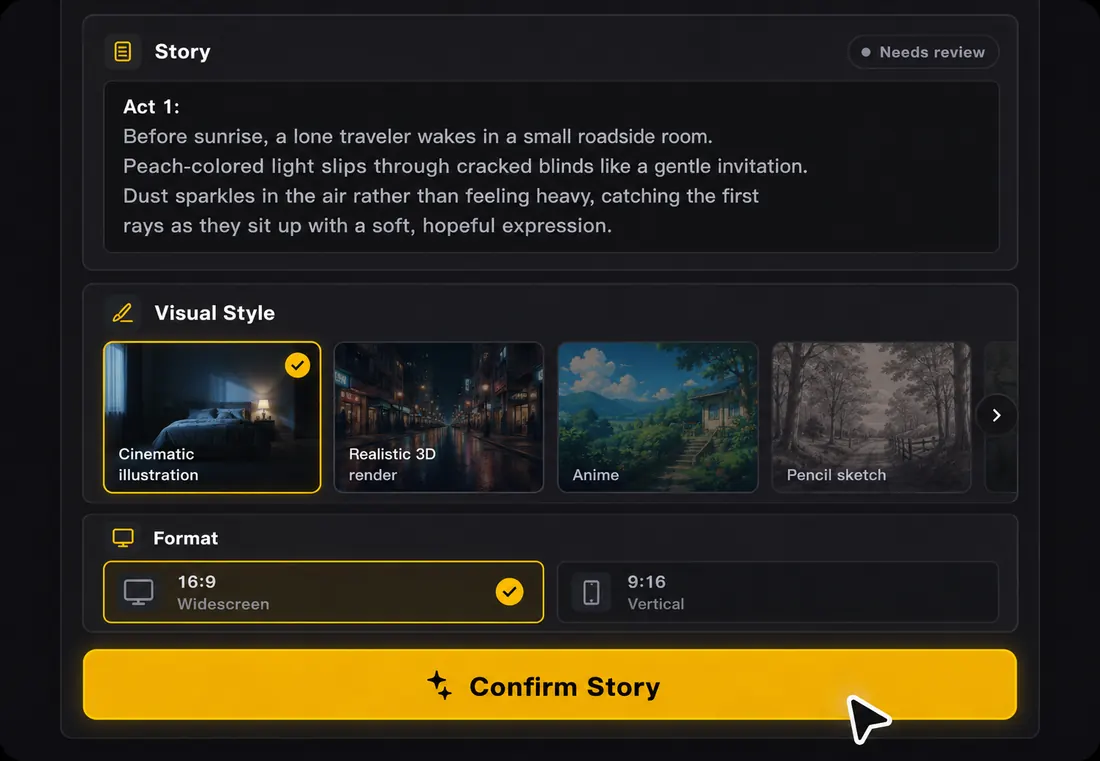
2AI transcribes the audio automatically and syncs every line in 50+ languages. Click any line to fix a word before rendering. The text follows the audio, so each line lands on screen right as it's sung or spoken.
 3
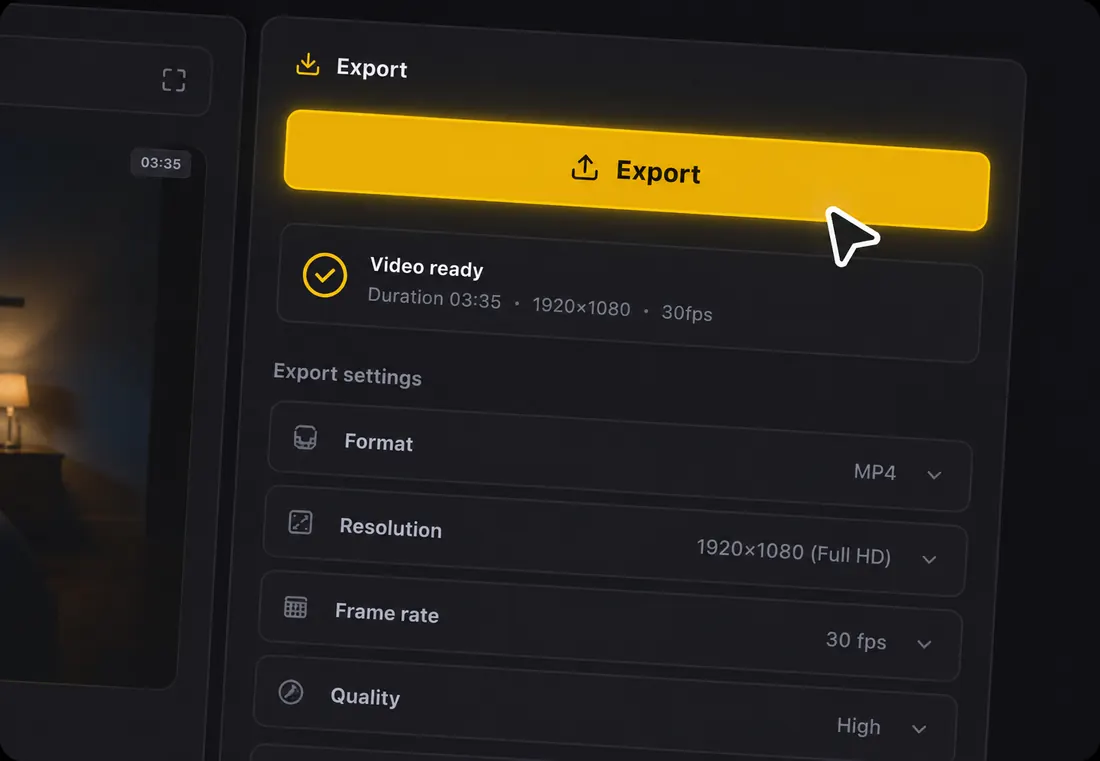
3Watch the full video with lyrics before publishing. Move the lyric block away from faces, products, or action in the frame, then export in 16:9 for YouTube, 9:16 for TikTok, Reels, and Shorts, or 1:1 for feed posts. Free to export (watermarked), no subscription required.
Building a lyric video by hand means typing every line, dragging text across a timeline, and checking every cue. LyricVideoMaker starts from your song audio, creates beat-synced lyrics, and renders a new lyric video without that manual timeline work.
Use a music video, performance recording, wedding clip, travel montage, fan edit, or promo cut. LyricVideoMaker adds the lyric layer without flattening the video into a generic caption template.
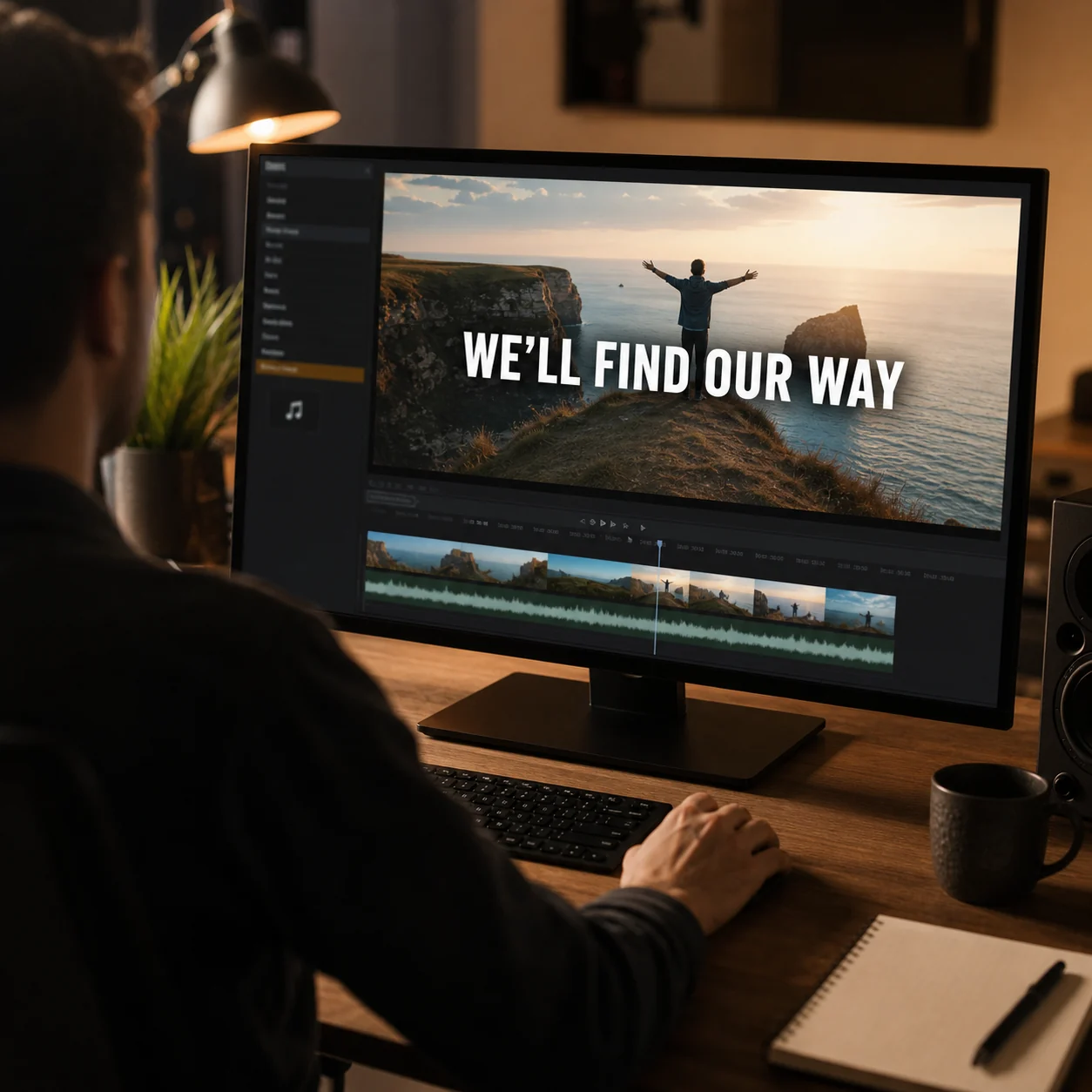
Place the lyric overlay where it supports the scene instead of covering faces, dancers, products, or the moment viewers came to see.
Instead of pinning plain text to the bottom of the frame, LyricVideoMaker places synced lyrics — or captions — as a visual layer that moves with the audio and stays readable over your footage.
If the transcript needs a correction, click the lyric line, adjust the words, and keep the timing workflow moving without starting the video over.
To add lyrics to video with LyricVideoMaker today means creating a new lyric-forward MP4 from your song audio, with direct upload-and-overlay for existing footage treated as a planned workflow. The stable path starts from audio, transcribes and syncs lyrics, generates scenes, lets you edit lines, and exports a finished video.
Accepted input
Audio upload only: MP3, WAV, FLAC, AAC, OGG, or M4A, up to 100MB per file.
Lyrics
AI transcribes vocals automatically in 50+ languages, then lets you edit every line before export.
Sync
Beat-aware line timing keeps lyrics readable and musical instead of simply dropping captions on a fixed grid.
Visuals
Storyboard planning and AI scene-image generation create backgrounds around the mood of the song.
Exports
MP4 with original audio in 16:9, 9:16, or 1:1 for YouTube, Shorts, TikTok, Reels, and feeds.
Start
Free credits are available at the start, so you can preview the workflow before spending more time on a release.
People searching this phrase often already have footage. The honest split is simple: the current product reliably creates a new lyric video from audio, while direct lyric overlay on an existing video needs more video-specific controls.
| Decision point | Practical guidance |
|---|---|
| Stable now | Upload audio, transcribe lyrics, sync lines, generate scenes, preview, and export MP4. |
| Planned overlay | Upload finished footage, extract or pair audio, then place lyrics over the existing video. |
| Needed for overlay | Face-safe positioning, original-video quality preservation, and drag placement. |
| Already useful | Create a standalone lyric video for the same song and use it beside the existing footage. |
| Best review step | Check whether lyrics stay readable before worrying about exact placement over footage. |
| Best expectation | Use the audio-first result today; treat direct video overlay as upcoming rather than guaranteed. |
Use these checks before you render, especially when the same project needs more than one platform format.
Adding lyrics to a video works best when the timing comes from the audio, not a manual timeline. The choices that matter happen before you render — here are the principles worth keeping.
Whether the words are lyrics or plain captions, the timing comes from the audio itself — synced text is baked in with nothing to type or drag, and lines stay clear of faces.
The words are the structure the viewer follows, not a caption added last. Always transcribe first, align to the beat second, and design the scene third.
AI handles transcription, timing, and scene generation. Whether the style fits, a line break should change, or you need a vertical, square, or widescreen export stays your call.
Viewers should never choose between reading the line and watching the scene. Keep contrast strong, lines short, and motion restrained so the visuals support the words.
Watch once for words to catch transcription errors, once for rhythm to catch lines that arrive early or late, and once for platform fit so it still reads in a phone feed.
A single project becomes a 16:9 full version, a 9:16 vertical, and a 1:1 square without retyping lyrics or rebuilding timing — which is what makes a release feel planned.
Make the lyric video while the song is still in your ear: you will hear awkward line breaks faster, catch misheard words sooner, and judge where the energy should rise or stay quiet.
A quick pre-export review catches most quality problems while they are still cheap to fix.
| Check | What to verify |
|---|---|
| Audio readiness | Accepted formats are MP3, WAV, FLAC, AAC, OGG, and M4A; keep the file under 100MB. |
| Language review | The system auto-detects 50+ languages, but bilingual hooks and names deserve a manual pass. |
| Timing review | Beat sync gives a strong baseline; nudge any line that lands early or late against the vocal. |
| Scene review | Generated images should match the mood without making text hard to read. |
| Export review | Check 16:9, 9:16, and 1:1 separately because readable text size changes by format. |
Upload audio, let AI transcribe and sync the lyrics, then export a new lyric video. Existing-video lyric overlay is planned for a later workflow.
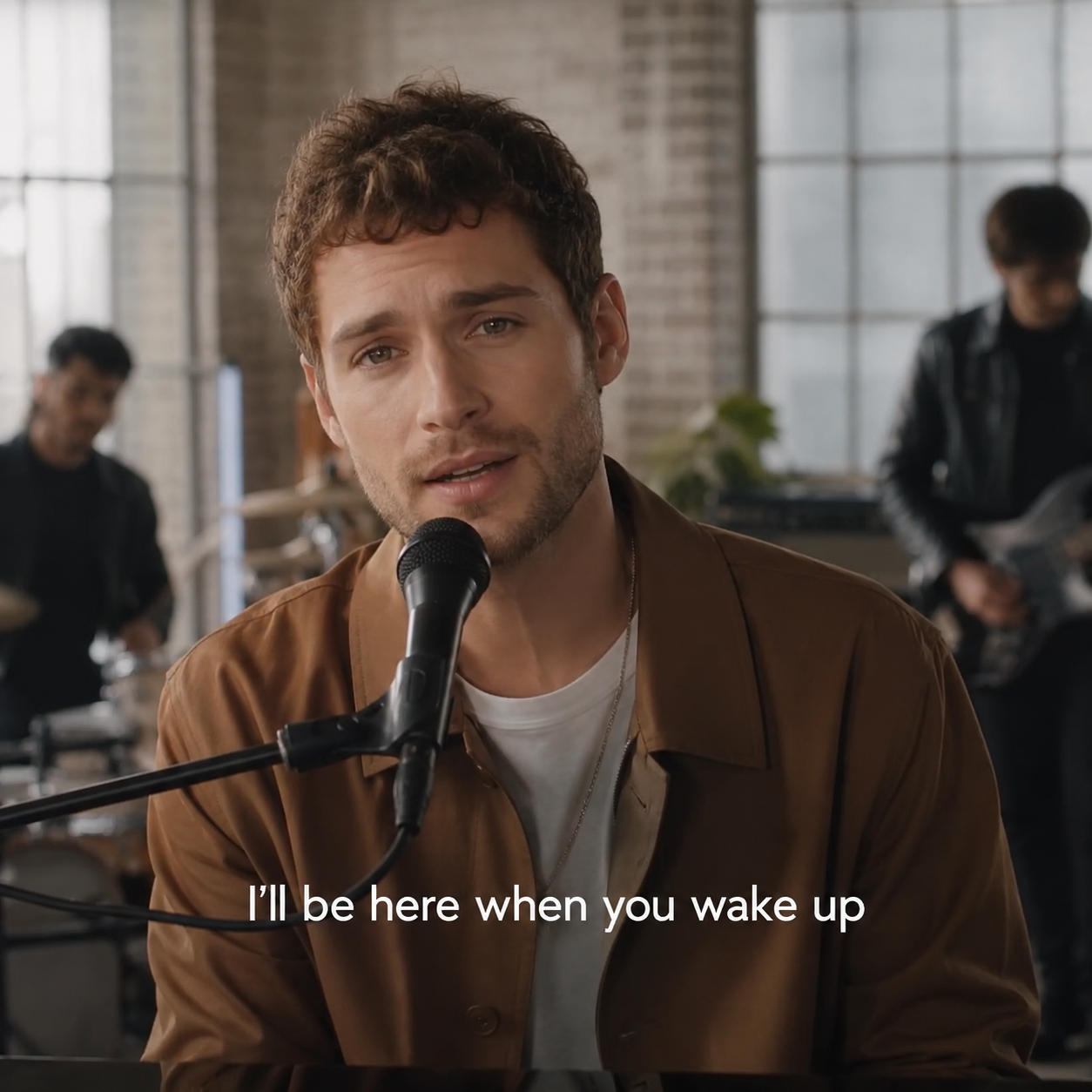
Add lyrics to official footage, performance cuts, or visualizers so viewers can follow the song without losing the video.
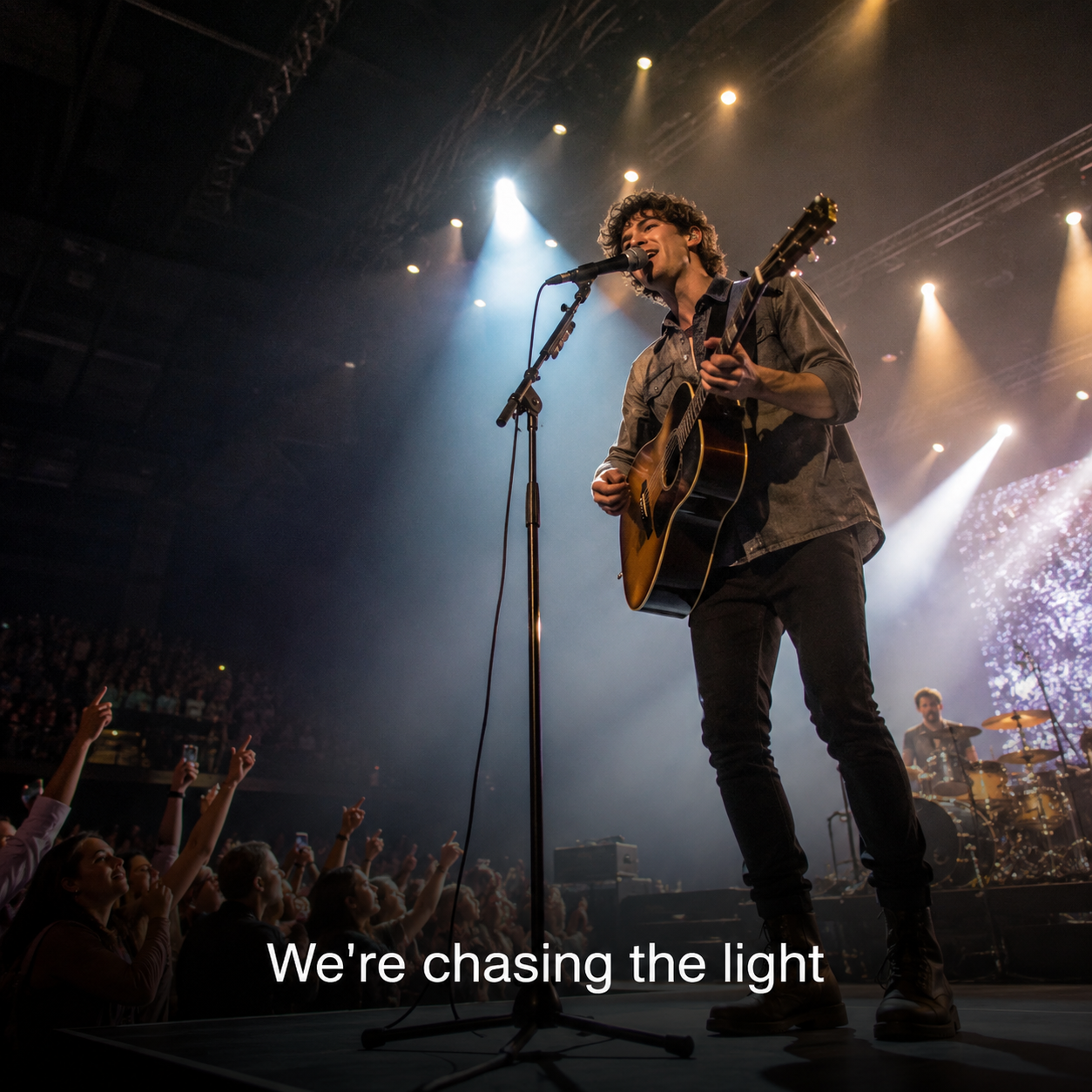
Overlay lyrics on live sets, covers, studio sessions, and rehearsal clips while keeping the energy of the original recording.

Put lyrics on first-dance edits, highlight reels, or event recaps when the song carries the emotion of the scene.
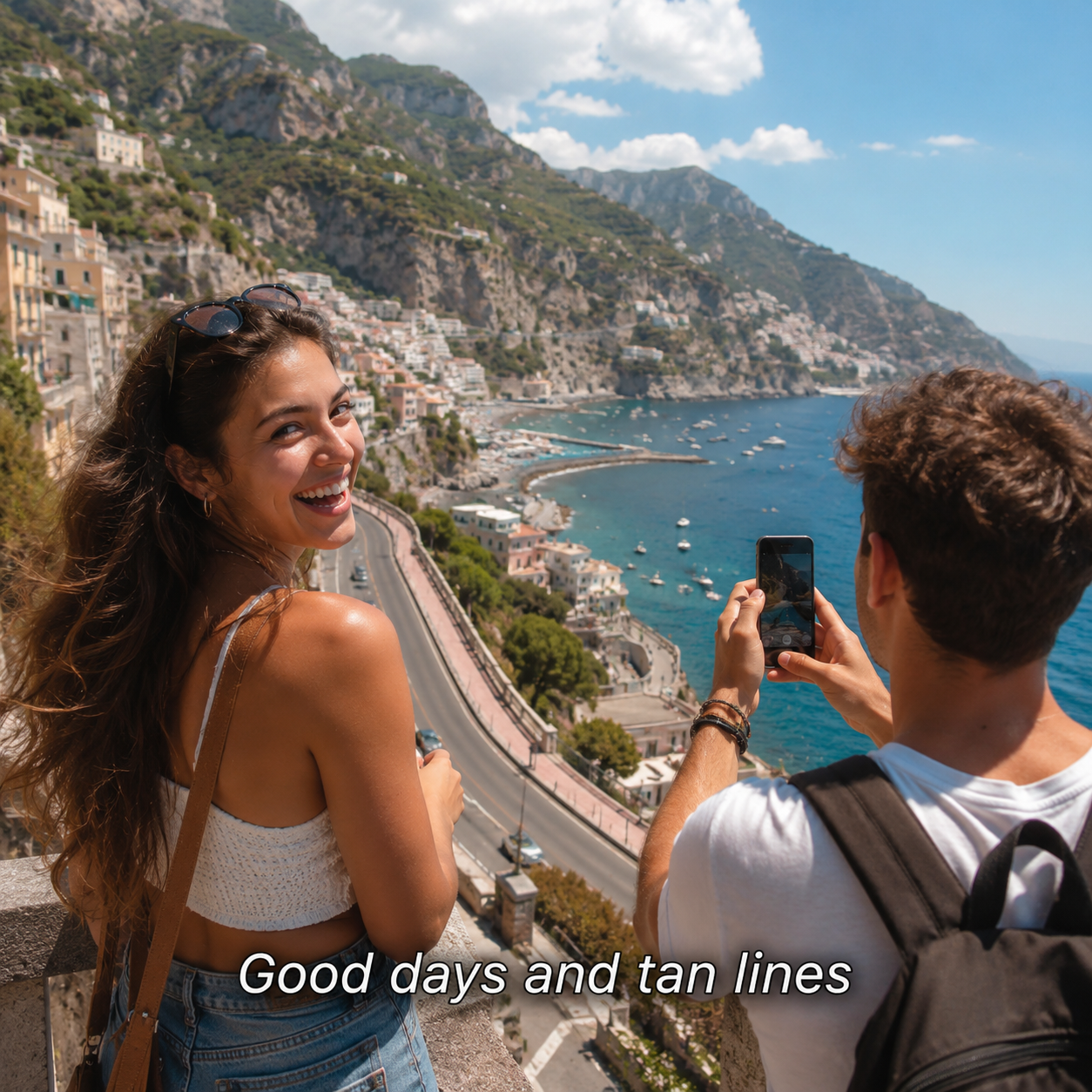
Add synced lyric overlays to footage, soundtrack cuts, and short social edits without rebuilding the timeline by hand.
Upload your video or audio to our lyric video maker, let AI transcribe and sync the lyrics, then export a finished lyric overlay video — free (watermarked), no subscription needed.
Add Lyrics to My Video — FreeFree credits · No subscription · No credit card